
Price lists
Overview
A price list is a named set of rules that changes the price of the products assigned to it. A price list can raise or lower the base product price by a percentage or a fixed amount, or set one fixed price for all its products, for example:
- wholesale or B2B prices for a specific customer role;
- a temporary sale applied to a selected customer group for a limited period;
- negotiated prices for particular customers, such as a long-term contract customer.
Price lists differ from discounts in that a price list changes the product price itself, and thus becomes the base for further calculations, while a discount is applied on top of the resulting price.
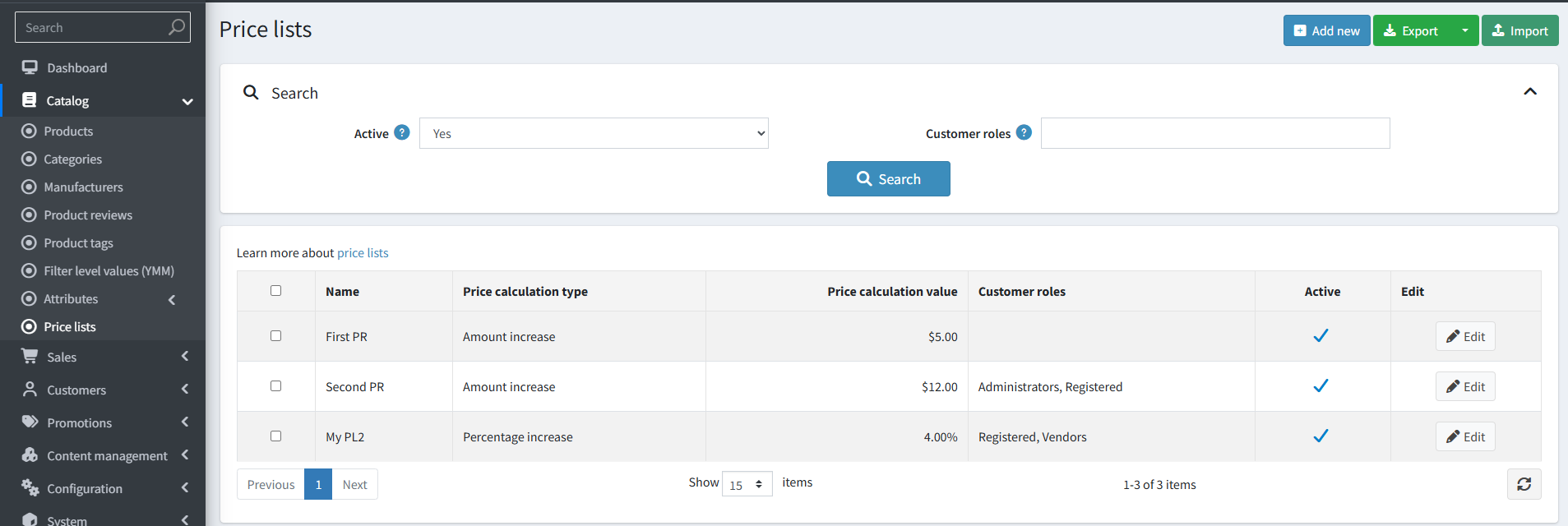
How a price list affects the price
A price is taken from a price list only when all the following conditions are met:
- the price list is active;
- the current moment is within the price list's start and end dates (if specified);
- the customer belongs to the customer roles selected for this price list, or is one of the customers added to this price list individually;
- the product is assigned to this price list.
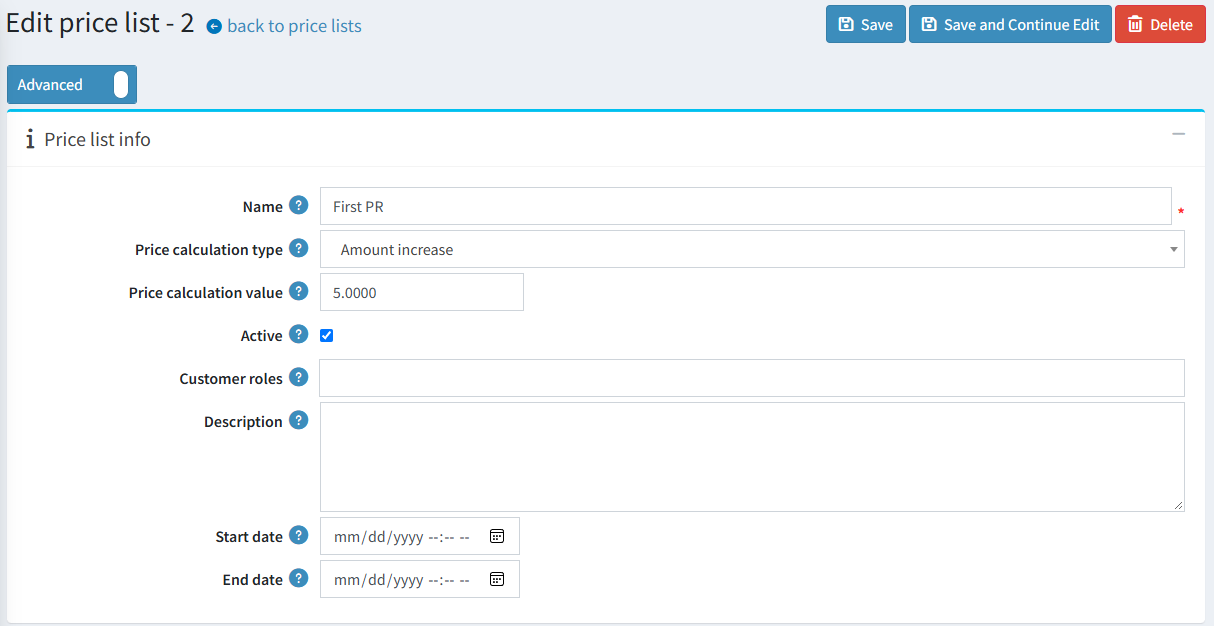
The price list price is calculated from the product base Price value using the selected calculation type and value:
| Calculation type | Result |
|---|---|
| Percentage decrease | base price minus the specified percentage |
| Percentage increase | base price plus the specified percentage |
| Amount decrease | base price minus the specified amount |
| Amount increase | base price plus the specified amount |
| Fixed price | the specified price is used as is |
For example, for a product with a base price of $100 and a price list with the Percentage decrease type and a value of 15, the price becomes $85.
A product can have a Manual price set within a price list. When specified, this value is used instead of the calculated one.
Note
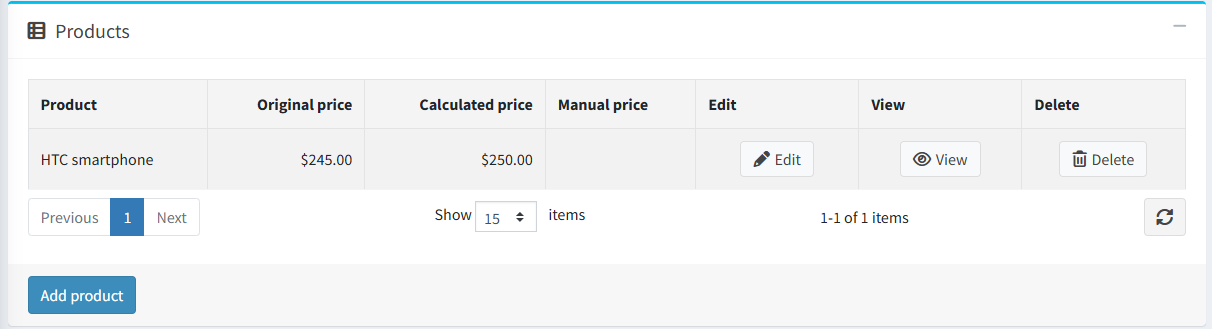
For any product you can check the result of the calculations on the price list's Products panel, where the Original price, Calculated price, and Manual price columns are displayed.
Multiple price lists for one product
If several active price lists apply to the same product and customer, the result depends on the Price list strategy setting, which you can find in Configuration → Settings → Catalog settings.
- Minimal price: all applicable price lists are applied, and the lowest resulting price is used.
- Use by priority: price lists are applied in ascending order of their Priority value, and the price of the first applicable price list is used. Price lists with a lower priority value are applied first; if several price lists share the same value, they are applied in the order they were created. This field is only displayed in the admin area when the Use by priority strategy is selected.
Note
The setting can also be configured separately for each store in a multi-store installation.
Creating a price list
To add a new price list, go to Catalog → Price lists and click Add new.
Define the following values in the Price list info panel:
- Name of the price list.
- Price calculation type. The available options are Percentage decrease, Percentage increase, Amount decrease, Amount increase, and Fixed price.
- Price calculation value. Its meaning depends on the selected calculation type: a percentage for the percentage types, or an amount for the amount and fixed price types.
- Active. Inactive price lists are not applied to products, which allows you to prepare a list in advance and switch it on later.
- Customer roles. Select the roles to which this price list is applied. If no role is selected, and no individual customers are added, the price list is applied to all customers.
- Description of the price list.
- Start date and End date. Leave these fields empty to make the price list active indefinitely.
Click Save to save the changes, or Save and continue edit to proceed to the other panels.
Assigning products to a price list
Products can be added to a price list from the price list page or from the product page.
From the price list page
Go to the Products panel of the price list and click Add product. In the pop-up window, find the required products (you can search by product name, category, manufacturer, vendor, store, and product type), select them, and click Save.
For each product in the grid, you can:
- view the Original price (the product's base price) and the Calculated price;
- set the Manual price to override the calculated value. Click Edit, enter the price, and save;
- open the product page or remove the product from the price list.
From the product page
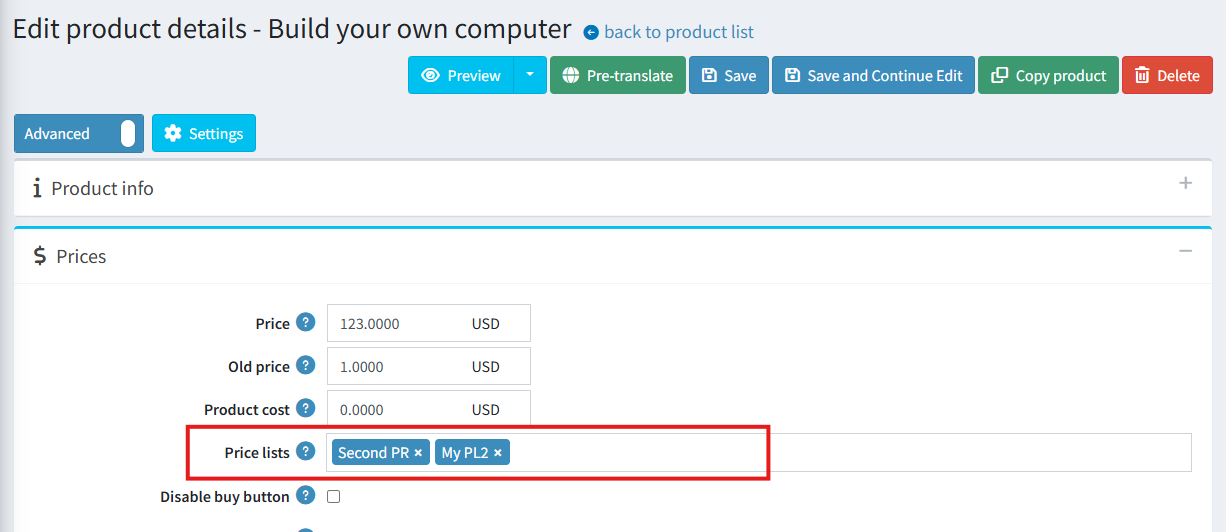
Go to Catalog → Products, open the required product, and in the Price panel select the price lists in the Price lists field. For more details, see Add products.
Note
A manual price set on the price list's Products panel takes precedence over the price calculated by the price list. Read more about this field in the Add products section.
Assigning customers to a price list
Along with customer roles, you can assign a price list to specific customers. Go to the Customers panel of the price list and click Add customer. Find the required customers, select them, and click Save.
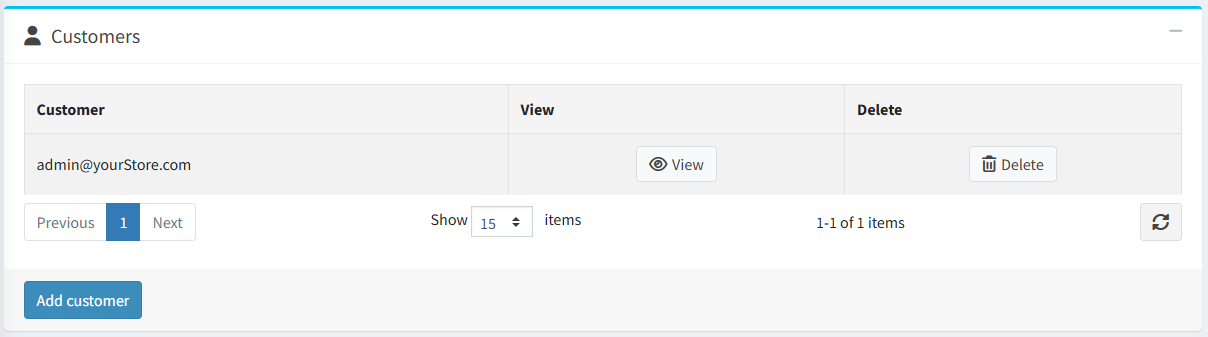
The price list is then applied to these customers in addition to the customers with the selected roles.
Note
Only registered customers can be added to a price list this way. To apply a price list to guests, use customer roles, such as the Guests role.
Import and export price lists
On the Catalog → Price lists page, you can import price lists from an Excel file or export the existing ones.
To export, click Export and select Export to Excel (all found) or Export to Excel (selected). To import, click Import and upload the Excel file.
The file contains the following columns for each price list:
Id, Name, Description, Active, StartDateUtc, EndDateUtc, PriceCalculationType, PriceCalculationValue, Customers, CustomerRoles, Priority.
Each product of a price list is described in the nested rows of the same file, with the Sku and ManualPrice columns.
Note
Price lists are distinguished by the Id column. If an ID already exists in your store, the corresponding price list is updated; for new price lists, leave this column set to 0. All the SKUs specified in the file must exist in your catalog, otherwise the import is not performed.
Permissions
The price list functionality is controlled by the following permissions in Configuration → Users → Roles:
- View price lists.
- Create, edit and delete price lists.
- Import and export price lists.
Read more about how to configure permissions in the Access control list section.
