
PunchOut
PunchOut is a procurement protocol that seamlessly connects your store to enterprise buyer procurement systems, such as SAP Ariba, Coupa, Oracle eProcurement, and more. It allows buyers to access your store directly from their procurement system, browse the catalog, and add products to the shopping cart without leaving their purchasing workflow. The cart content is then transferred back to the procurement system as a requisition.
In nopCommerce, the integration is implemented as the PunchOut cXML Integration plugin (system name Misc.PunchOut) and is available since nopCommerce 5.00. The plugin belongs to the Misc group and implements the PunchOut protocol using cXML (version 1.2.014).
How it works
- A procurement system sends a
PunchOutSetupRequest(cXML document) to your store. - nopCommerce validates the request, creates a PunchOut session, and returns a
PunchOutSetupResponsecontaining the Start Page URL. - The user is redirected from the procurement system to the nopCommerce storefront and is automatically authenticated.
- The user browses the catalog and adds products to the shopping cart as usual.
- During an active PunchOut session, the standard Checkout button is replaced with Submit for Approval.
- When Submit for Approval is clicked, nopCommerce generates a
PunchOutOrderMessage(cXML) from the current shopping cart. - The browser automatically posts the
PunchOutOrderMessageback to the procurement system using the BrowserFormPost URL provided in the original setup request. - The procurement system creates or updates the requisition based on the received cart data.
- No order is created in nopCommerce, and payment processing is skipped.
- The PunchOut session is completed and the user is returned to the procurement system.
Note
- PunchOut sessions are stored in the database and expire automatically.
- All inbound and outbound cXML documents are logged for auditing and troubleshooting.
- Multiple procurement systems can be configured using separate PunchOut client credentials.
- The standard nopCommerce checkout flow is bypassed for active PunchOut sessions.
Install the plugin
- Go to Configuration → Local plugins.
- Search for PunchOut cXML Integration in the Plugin name field. The plugin belongs to the Misc group.
- Click the Install button.
- Click the Restart application to apply changes button to apply changes.
Configure the plugin
To configure the plugin, go to Configuration → Local plugins and click Configure beside PunchOut cXML Integration.
The configuration page contains the following sections:
- Common settings — general plugin settings.
- Identity — the PunchOut client credentials allowed to connect to your store.
- Session — the active and completed PunchOut sessions.
- Log — the inbound and outbound cXML documents.
Define the following general settings:
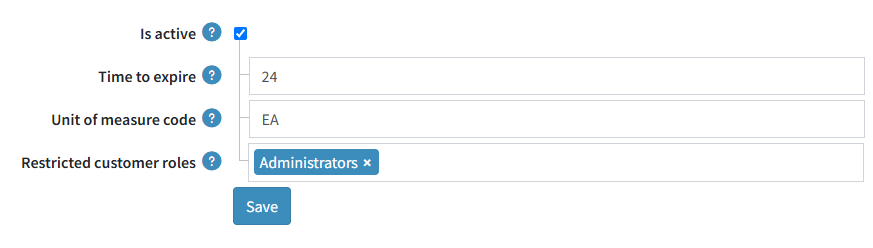
- Is active — enable or disable the plugin. The plugin is disabled by default; when it is disabled, nopCommerce responds to incoming setup requests with the Service Unavailable error.
- Time to expire — the time in hours after which the PunchOut session will expire (24 hours by default).
- Unit of measure code - the unit of measure code for PunchOut session.
- Restricted customer roles — select customer roles that will not have access to the PunchOut feature. If no role is selected, all customers will have access. By default, the Administrators role is restricted.
Click Save to save the changes.
Configure identities
A procurement system authenticates itself by the Identity and Shared secret credentials sent in the Sender element of the setup request. nopCommerce validates the credentials and rejects requests with an invalid shared secret.
In the Identity section, manage the senders allowed to connect to your store:
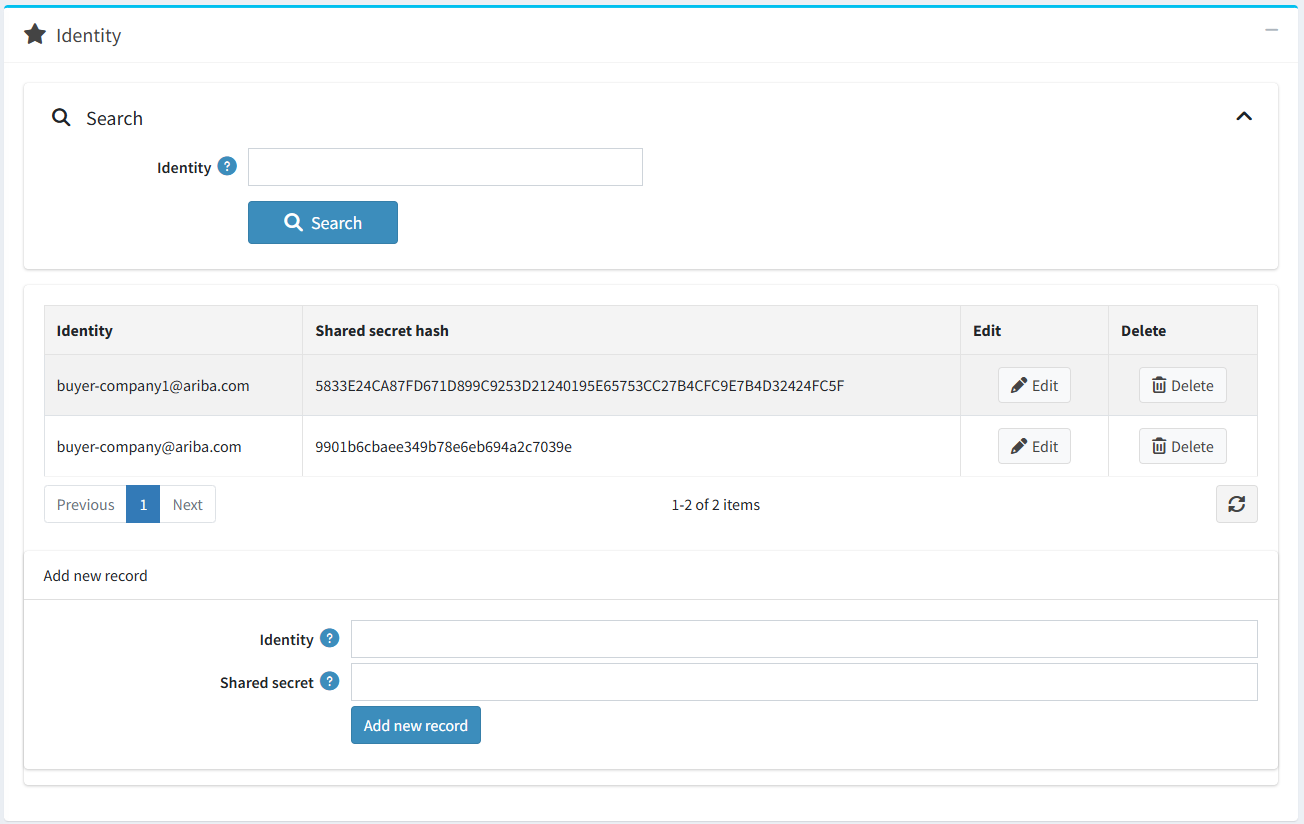
- Use the search field to filter identities by the identity value.
- The grid lists the Identity and Shared secret hash columns. Both values can be edited inline. When you change the value in the "Shared secret hash" column, you are, in effect, entering a new secret key that will then be hashed.
- Use the Edit and Delete buttons to manage the identities.
- In the Add new record block, enter the Identity and Shared secret of the procurement system and click the Add new record button.
Important
The shared secret is stored as a SHA-256 hash. Provide the identity and shared secret to your procurement system administrator, so the same credentials can be configured on the procurement system side.
The PunchOut session on the storefront
When a buyer follows the Start Page URL, nopCommerce activates the session and signs the buyer in automatically. If a customer with the contact email from the setup request does not exist, a new customer is created and assigned to the Registered customer role. The ShipTo address from the setup request is saved as the customer's shipping address.
During an active PunchOut session:
- The buyer can browse the home page, catalog, product pages, and the shopping cart only; navigation to any other page is redirected to the home page.
- The standard Checkout button is replaced with Submit for Approval, and item discounts are hidden on the cart page.
- Checkout, contact forms, product reviews, and customer account pages (account information, registration, password recovery, addresses, downloadable products, avatar, GDPR tools, gift card balance, multi-factor authentication) are not available.
- Product reviews are disabled on product details pages.
If the session expires, the session data is cleared and the buyer is redirected to the home page with the Your PunchOut session has expired notification.
Manage sessions
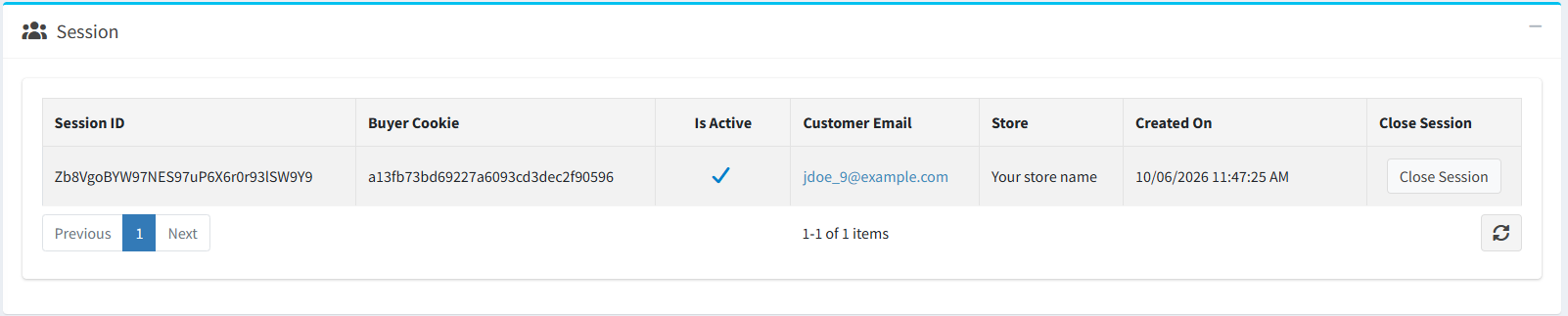
The Session section lists PunchOut sessions with the session ID, buyer cookie, activity state, customer email (linked to the customer edit page), store, and creation date. Use the Close Session button to close a session manually.
View the log
The Log section lists all inbound and outbound cXML documents. Each entry contains the session ID, message type (SetupRequest, SetupResponse, or OrderMessage), and creation date. Filter the log by the creation date.
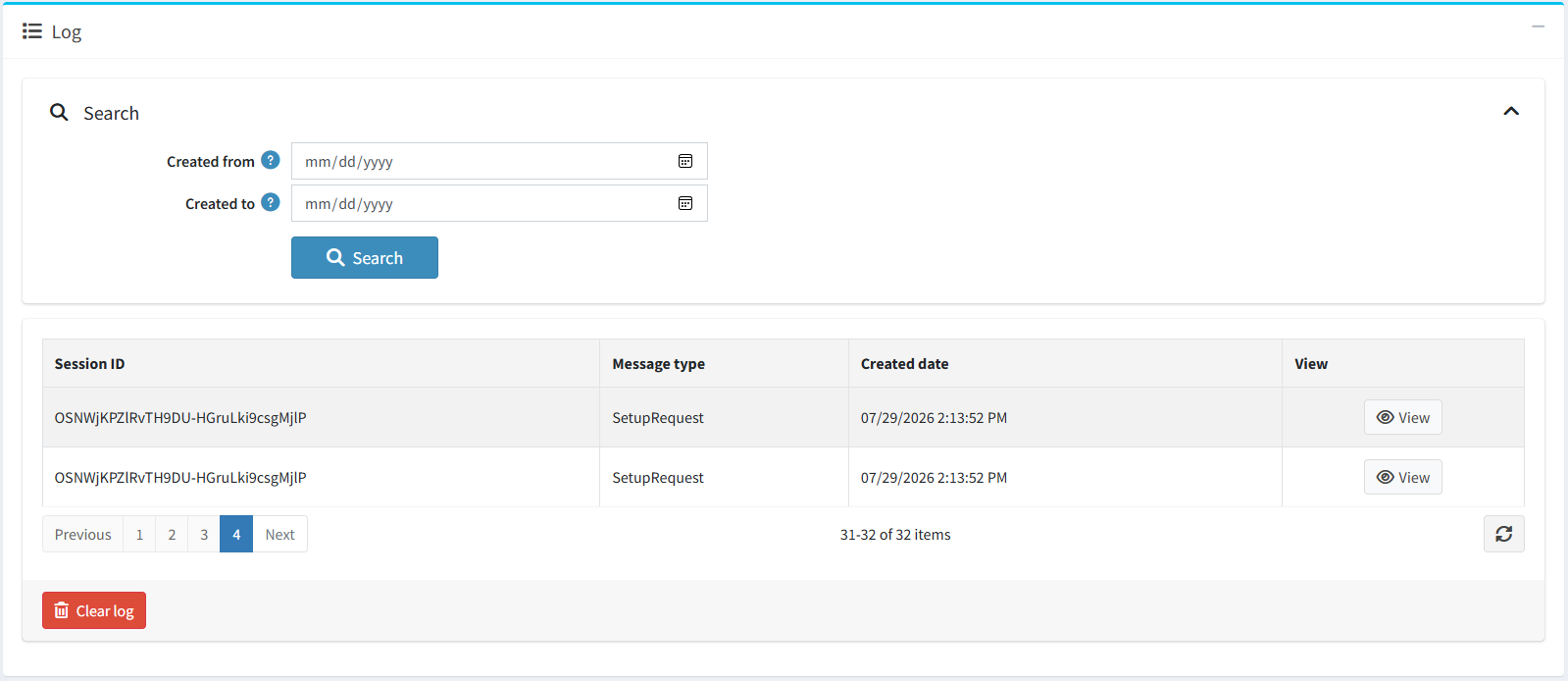
Click the View button to see the entry details: session ID, message type, direction (Inbound — from the procurement system to nopCommerce, or Outbound — from nopCommerce to the procurement system), raw XML, URL, identity, error message (if any), and creation date. Delete single entries on the log entry page, or clear the whole log using the Clear log button.
cXML messages
The plugin implements the following cXML messages (version 1.2.014):
- PunchOutSetupRequest — sent by the procurement system to
POST /punchout/setup. nopCommerce reads the sender credentials, buyer cookie, BrowserFormPost URL, contact email, and ShipTo address. - PunchOutSetupResponse — returned by nopCommerce. It contains the Start Page URL (
/punchout/start?sessionId=...) that redirects the buyer to the storefront. - PunchOutOrderMessage — generated from the current shopping cart and posted to the BrowserFormPost URL. It contains the buyer cookie, the cart total, and the cart items with the product SKU (
SupplierPartID), description (the product name and attribute values), quantity, unit price, and currency.
Error responses use the standard cXML Response/Status element with the appropriate status code: 401 for an invalid shared secret, 400 for a malformed request, and 503 when the plugin is disabled.
