
Email accounts
This chapter describes how to set up email accounts associated with your store: a general contact email, a sales representative email, a customer support email, and more.
To manage email accounts, go to Configuration → Email accounts. The Email accounts window displays the email accounts of the store owner, as shown below. After the email accounts are configured, the store owner can select the required email account on the message template details page as described in the Message templates chapter.

Add a new email account
To add a new email account, click Add new. The Add a new email account window will be displayed:
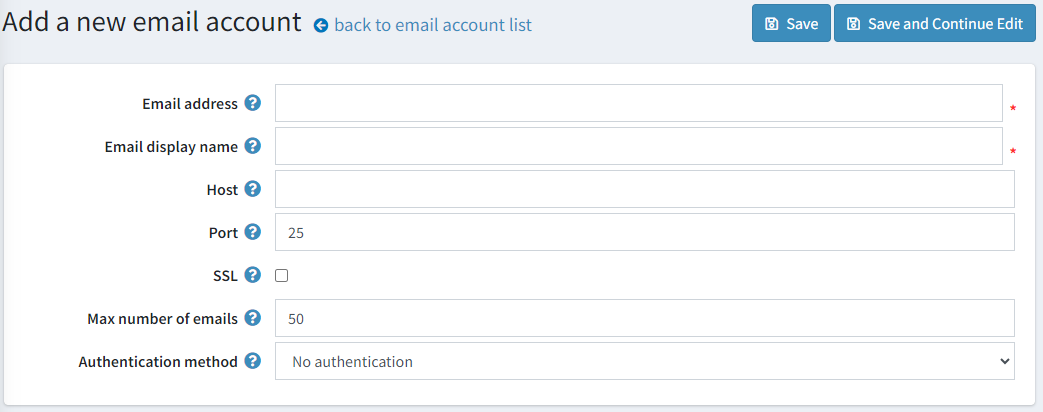
Define the following email account information:
- In the Email address field, enter the email address for all outgoing emails of your store. Example:
sales@yourstore.com.Note
Some of the email providers may not use this setting unless this email address is added as an sending email alias/account in the email account which you're using for authentication.
- In the Email display name field, enter the displayed name for outgoing emails of your store. Example: "Your store sales department."
- In the Host field, enter the host name of IP address of your email server.
- In the Port field, enter the SMTP port of your email server.
- Select the SSL checkbox to use Security Sockets Layer to encrypt the SMTP connection.
- In the Max number of emails field, enter the maximum number of emails sent at one time.
- Choose the Authentication method that will be used to identify the client when connecting to the SMTP server.
- No authentication (no additional fields)
- NTLM (the default network credentials)
- Login/Password
- In the User field, enter the user name of your email server.
- In the Password field, enter the password of your email server.
- Google (OAuth2)
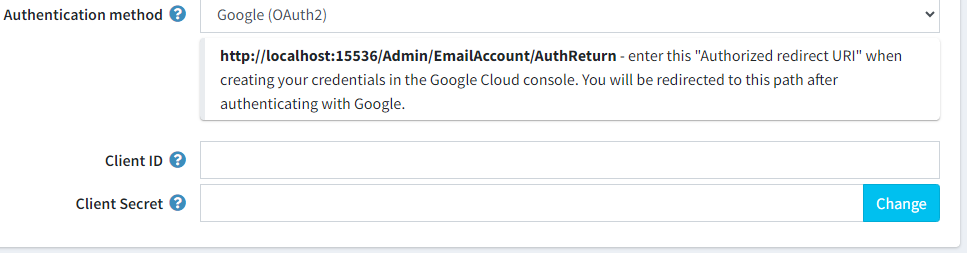
- The Client ID. Public identifier for application.
- The Client Secret. The secret known only to the application and the authorization server.
- Microsoft (OAuth2)
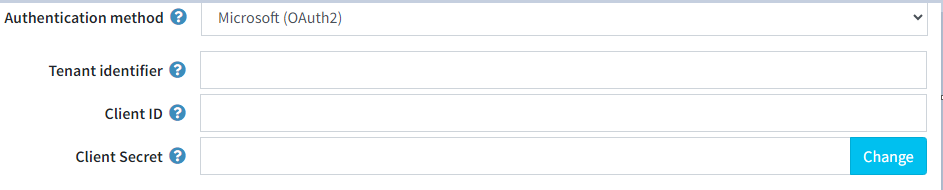
- The Tenant identifier can be a GUID (the ID of your Microsoft Entra instance), domain name or one of placeholders: "organizations", "consumers", "common".
- The Client ID. Public identifier for application.
- The Client Secret. The secret known only to the application and the authorization server.
Click Save. The window will be expanded as follows:
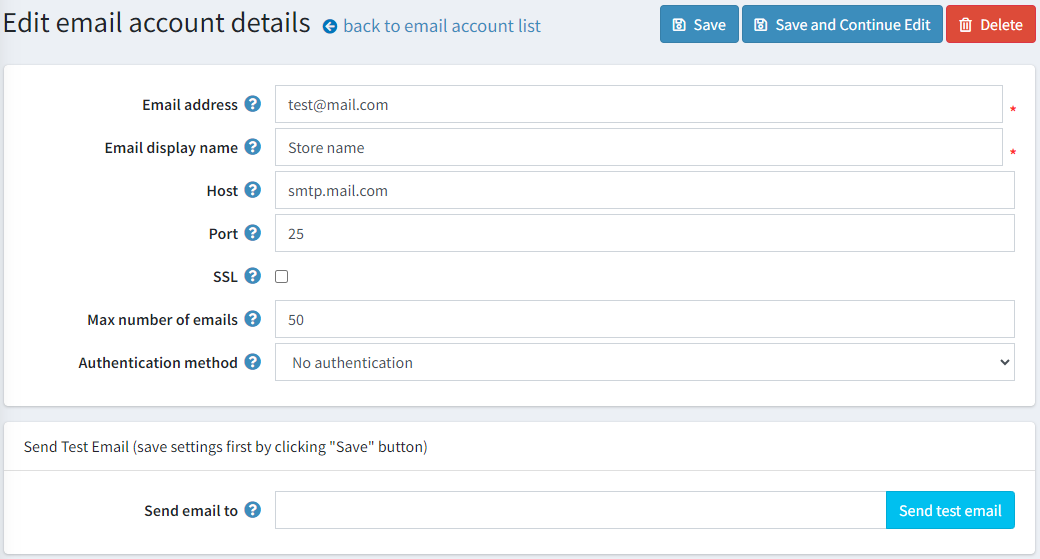
In the Send email to field, enter the email address for the test email and click Send test email.


