
SMS providers
To define SMS providers go to Configuration → SMS providers.
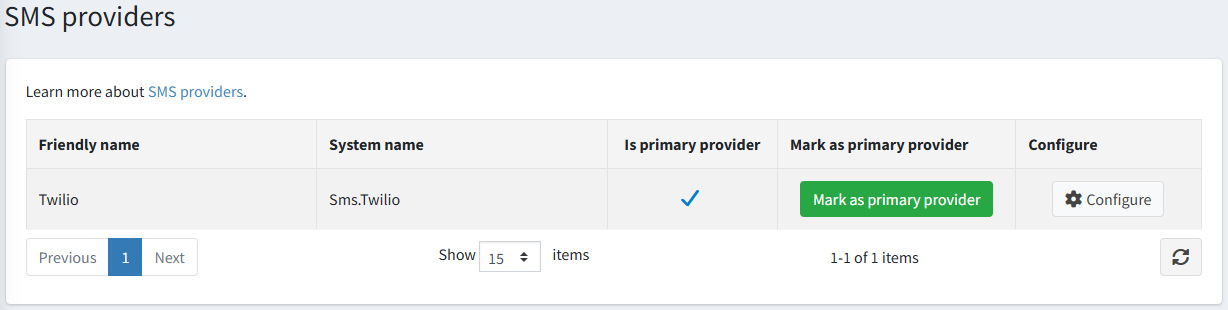
Only one SMS provider can be used for sending notifications. Adding new SMS providers is only recommended for advanced users. To select the default SMS provider click the Mark as primary provider button.
Enable sign-in with phone number
- Go to Configuration → Settings → Customer settings. Password and security section.
- Select the 'Login by phone' enabled checkbox (an additional option to sign in by email address).
- Make sure the 'Phone number' enabled option is selected in the Customer form fields panel, otherwise customers will not be able to specify the number to send the code to.
- Save the settings.
How it works
- A customer enters the phone number on the sign-in page of the public store.
- The store asks the primary SMS provider (Twilio in this case) to send a verification code to this number.
- The customer enters the received code, and the store verifies it before signing the customer in.
Tip
By default, there are several SMS providers available in nopCommerce, but you can find more SMS providers in the nopCommerce marketplace.
The configuration of SMS providers is described in the following chapters:
